Calendar
See a brand's planned drafts and publications by month, week or day, and start a post from a date.
The Calendar shows a brand's planned drafts and its publications in one place. It is a view of the same schedule as Publishing: nothing exists only in the calendar.
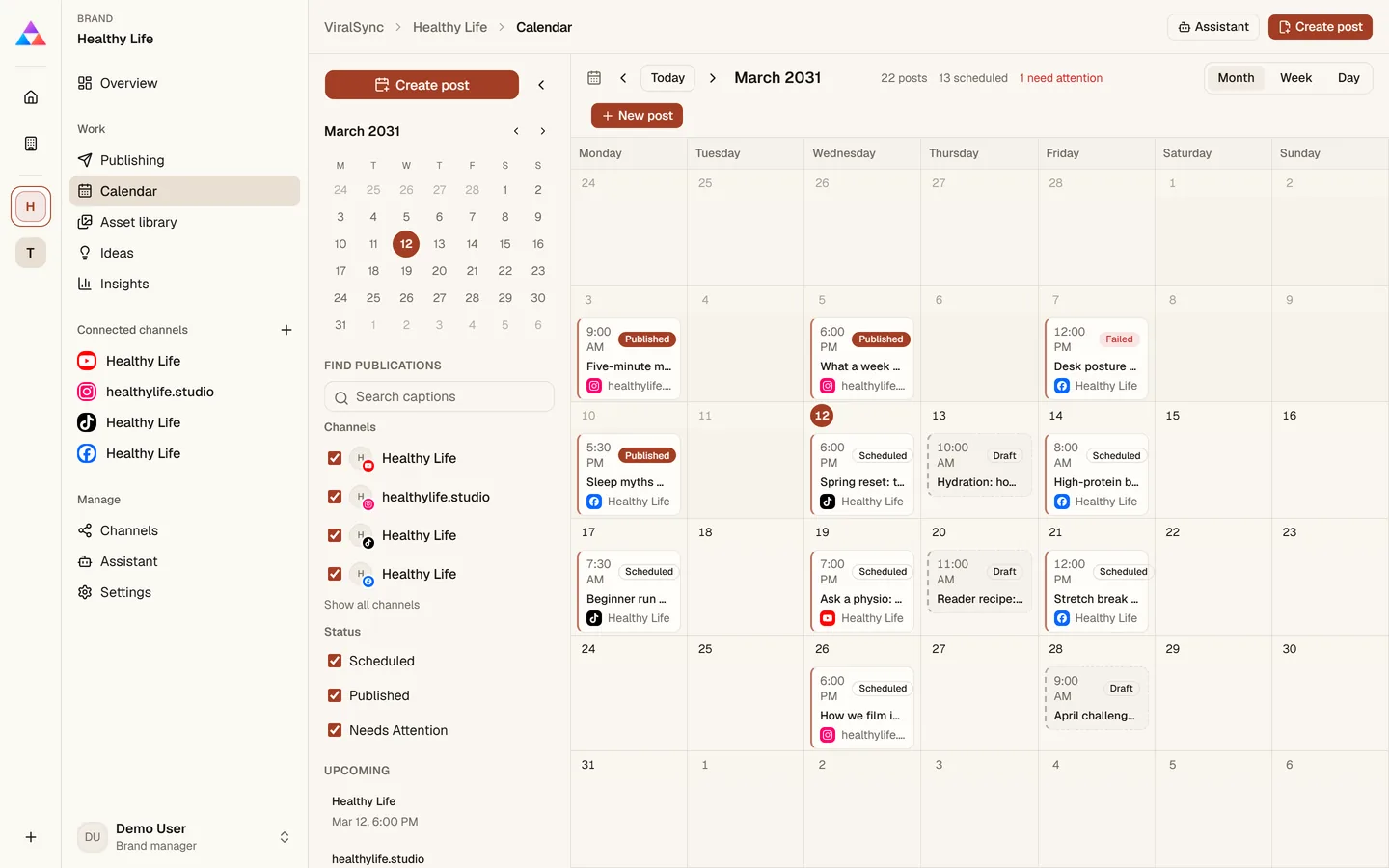
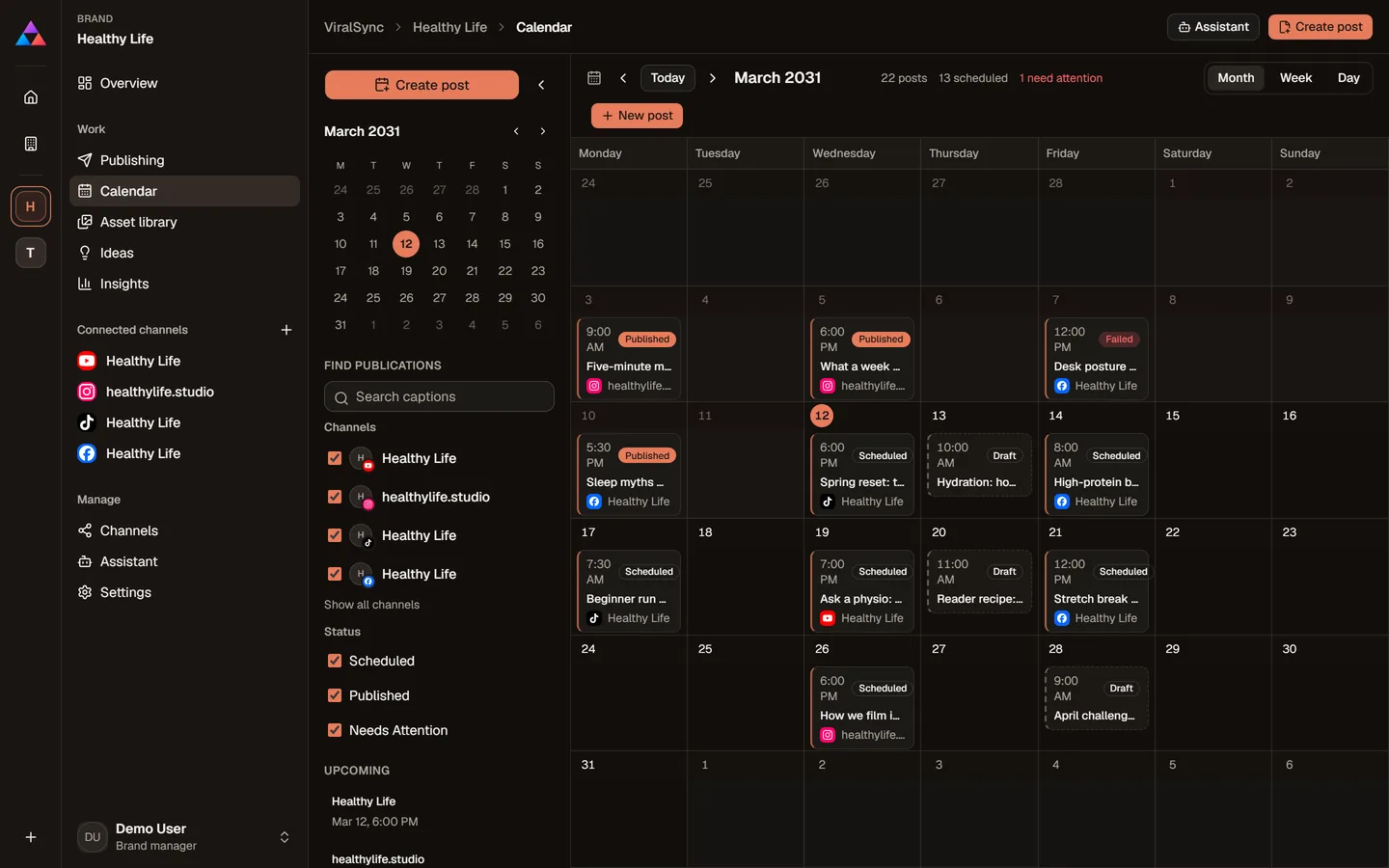
Open the calendar
Open the brand and go to Calendar. Switch between month, week and day, and move to the previous or next period.
Times are shown in the brand's time zone. You can change it in the brand's settings.
Find a post
The calendar sidebar has a small month overview and filters:
- Search captions finds posts by their text.
- Channels limits the calendar to some channels.
- Status limits it to some states, for example publications that need attention.
Select an entry to see its details: the current status and the channel it goes to. From there you can open the post or the draft.
Start a post from a date
- Select a day in the month view, or a time in the week or day view.
- The composer opens with that time as the plan.
- Write the post and save the draft.
Choosing a time in the calendar plans the draft. It does not schedule it: nothing is published until you confirm the schedule in the post. See Publishing and scheduling.
The time has to be in the future.