Composer
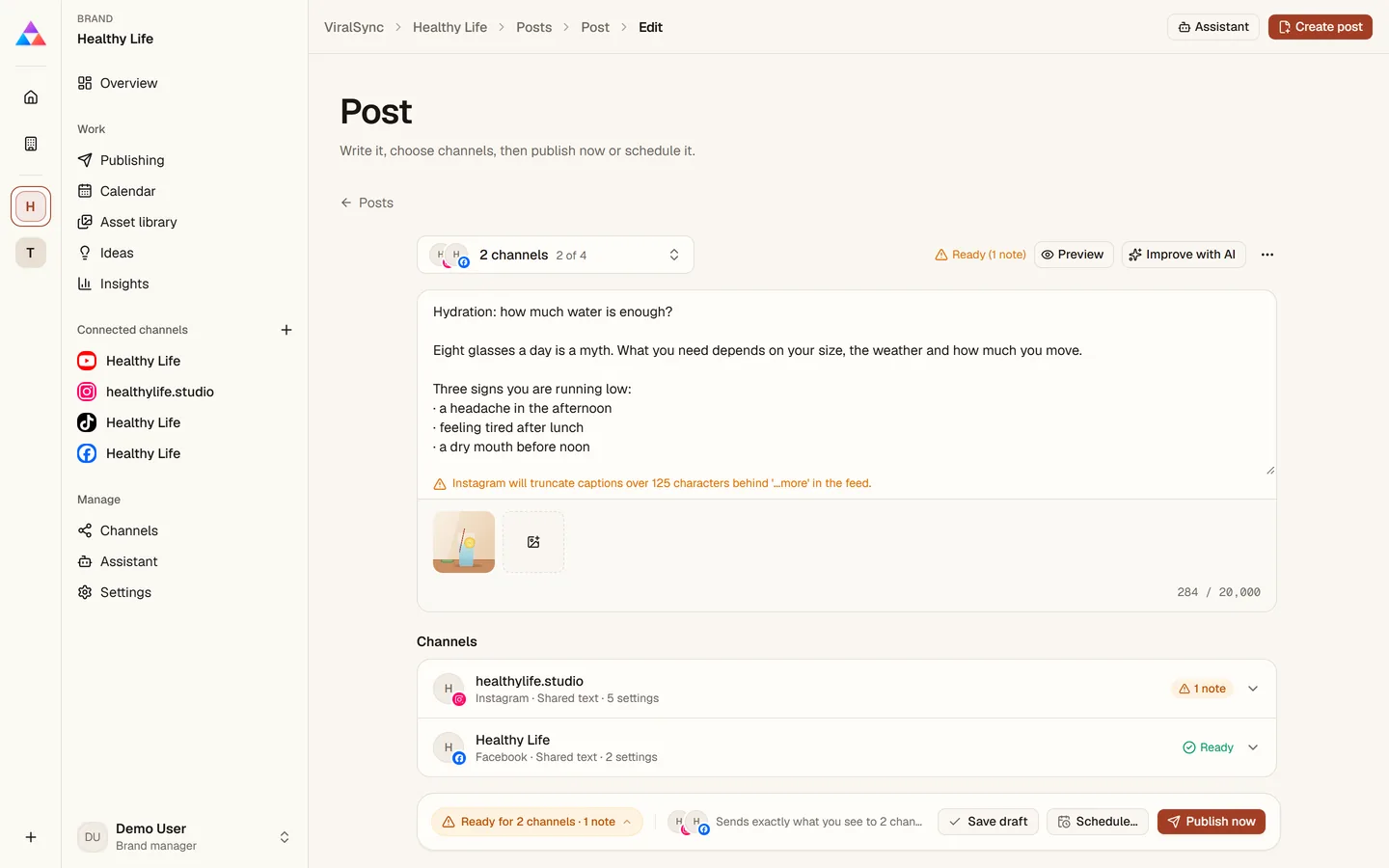
Write a post once, add media, choose channels and adjust the post for each of them.
The composer is where a post is written. A post starts as a draft: it has one shared text, an ordered list of media and the channels it should go to. Nothing leaves ViralSync until you publish or schedule it.
Limited availability
Connecting a social platform is not yet open in the live app. Until it is, you can prepare media and drafts, but a post cannot be published to a platform.
Before you start
- You need a role on the brand that can edit content: editor, publisher or manager.
- To choose channels, the brand needs at least one connected channel.
Create a draft
- Open the brand and select Create post. The composer opens with a new post.
- Write the Shared text. It is used for every channel unless you change it for one.
- Select Add media. Use Upload for a file from your device or Library for one that is already in the asset library.
- Under Channels, choose where the post should go.
- Select Save draft. The composer confirms with Draft saved.
Media keeps the order you give it. Use Move earlier and Move later to change the order.
Adjust the post for one channel
Each chosen channel has its own details.
- Custom caption replaces the shared text for that channel only. Without it, the channel uses the shared text.
- The other fields depend on the platform, for example a title for a video or who may see it.
Media requirements shows what the platform accepts for the channel, such as aspect ratio, file size and duration.
Check the result
Preview shows the post as it is prepared for one channel. Choose the channel to preview. The preview is an approximation of the platform's layout, not an exact copy.
ViralSync checks the draft against each platform's rules. Fields that need a change are listed under Needs your input, with the reason, for example a caption that is too long or a missing title. When everything is in order, the composer shows Ready with the number of channels.
A draft with open issues cannot be published.
Improve with AI
Improve with AI takes a short brief and proposes text and channel fields for the draft. The proposal is not saved by itself: review the fields, then save the draft.
Delete a draft
Open the draft's actions and select Delete draft.